
What is Now Assist in Service Now
Now Assist is Service Now’s suite of generative AI-powered experiences integrated into the Now Platform. It leverages domain-specific large language models (LLMs) to enhance productivity, efficiency, and user interactions across various Service Now applications, such as IT Service Management (ITSM), Customer Service Management (CSM), Human Resources (HR), and more. Key capabilities include:
- Content Generation and Summarization; automatically generate summaries for cases, incidents, chats, emails, and knowledge articles to speed up resolution times.
- Self-Service and Recommendations: Provide proactive suggestions, answers to queries, and action recommendations in Virtual Agent or search interfaces.
- Search Enhancement; Use AI-powered search (AI Search) to deliver more relevant results, including a semantic understanding of user queries.
- Code and Workflow Assistance: Generate code snippets, flows, or scripts for developers using tools like Now Assist for Creators.
- Multilingual Support: Handles queries in multiple languages with automatic translation for global accessibility.
By combining generative AI with Service Now’s workflow automation, Now Assist helps organizations reduce manual effort, improve self-service, and accelerate decision-making. It’s designed for tasks like case summarization, email drafting, and incident avoidance, potentially saving significant time and costs (e.g., up to 54% efficiency gains in some implementations).
Required Roles in Now Assist
Area / Feature | Required Role | Purpose / Access Provided |
Now Assist Administration | now_assist_admin | Access to Now Assist Admin Console, skill configuration, data governance, embeddings, external search setup. |
Now Assist Panel (Sidebar) | now_assist_panel_user | Allows users to access and interact with the Now Assist panel in Next Experience UI. |
Now Assist for ITSM | itil | Use AI summaries, resolutions, and recommendations in ITSM workspace. |
Now Assist for CSM | customer_service_agent | Use Now Assist in CSM Configurable Workspace for customer cases. |
Now Assist for HR | sn_hr_core_case_writer | HR agents can use Now Assist for HR Case Management workflows. |
AI Search Genius Results | None | End users can access AI-driven search without special roles. |
Virtual Agent + GenAI | None | End users can chat with GenAI-powered Virtual Agent. |
Administrators | admin | Full access to all Now Assist features and configuration. |
1. How to Enable Now Assist
Enabling Now Assist requires licensing, plugin activation, and configuration. It’s available as a service Now Store app and works on supported releases (e.g., Xanadu or later). Here’s a step-by-step guide:
1.1 Verify Prerequisites and Licensing:
– Ensure your instance is in a compatible version (check service Now release notes).
– You need an active subscription for Now Assist (e.g., Now Assist for ITSM, CSM, HRSD)
Contact your service Now account representative to purchase or confirm entitlements.
– For on-premises or self-hosted setups, ensure infrastructure meets specs (e.g., AWS, GCP, or Azure support).
1.2. Install Plugins from service Now Store
– Navigate to All > System Definition > Plugins (or use the service Now Store).
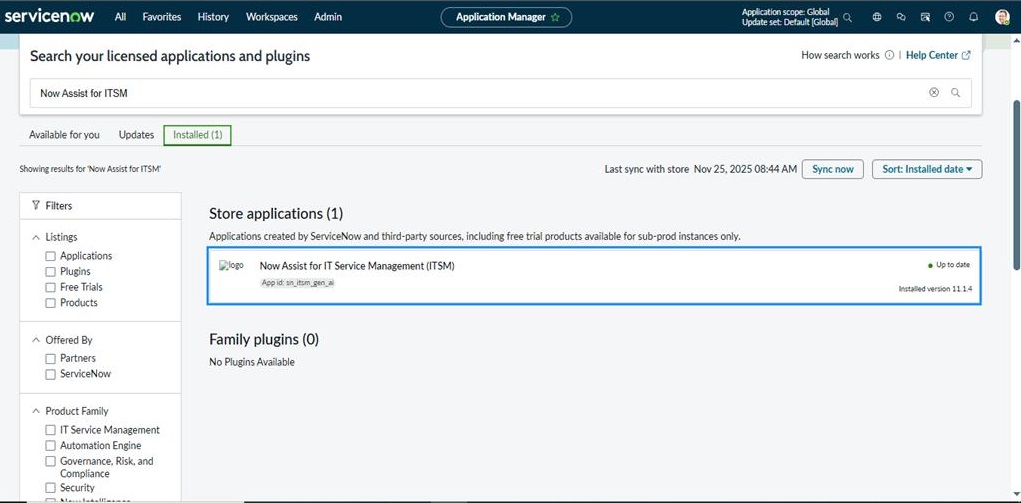
– Search for and request the relevant Now Assist plugin (e.g., “Now Assist for ITSM”).
– Once processed (may take a few minutes), install it via the Plugins manager. Sync plugins if needed by clicking the Sync button.
2. Access the Now Assist Admin Console
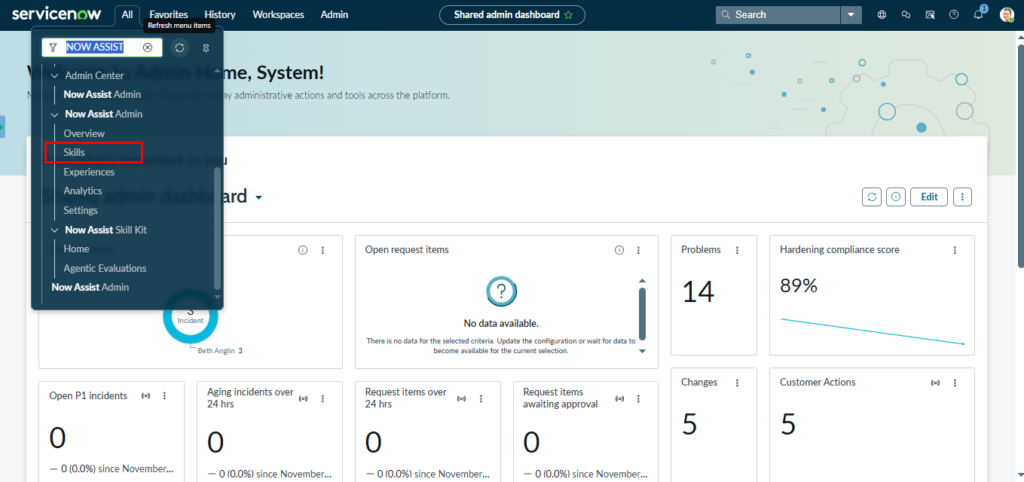
– Log in as an admin and navigate to All > Now Assist Admin Console (or search for “Now Assist” in the navigator).
– Review your Account Information page to verify entitlements, plugin status, and opt-out of data sharing if required (configurable by data stewards for compliance).
3. Activate Skills and Features
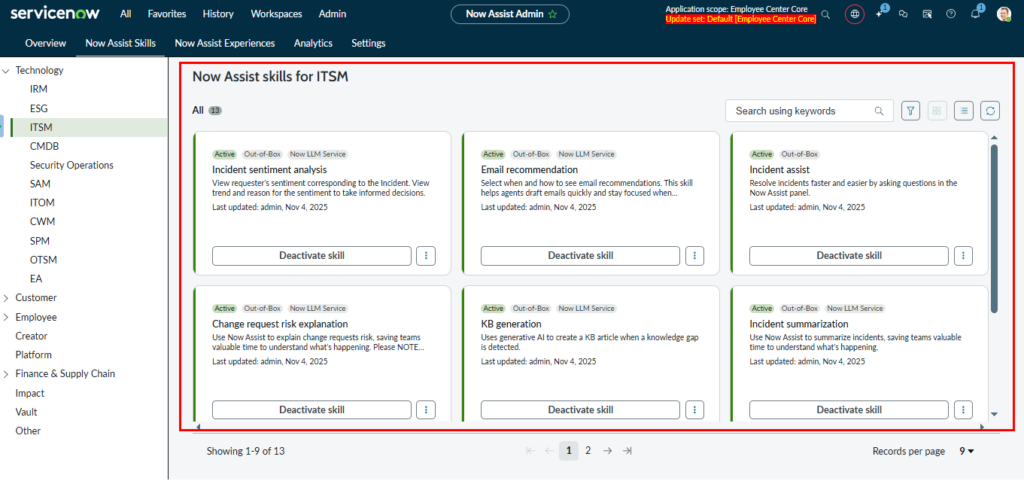
– In the Features tab, select the category (e.g., Technology for ITSM).
– Choose a skill (e.g., Case Summarization) and click View Details.
– Configure settings (e.g., data sources, language/region—defaults to English with multilingual detection).
– Click Save & Next through the guided setup, then activate.
Plugin
| ID
| Action
|
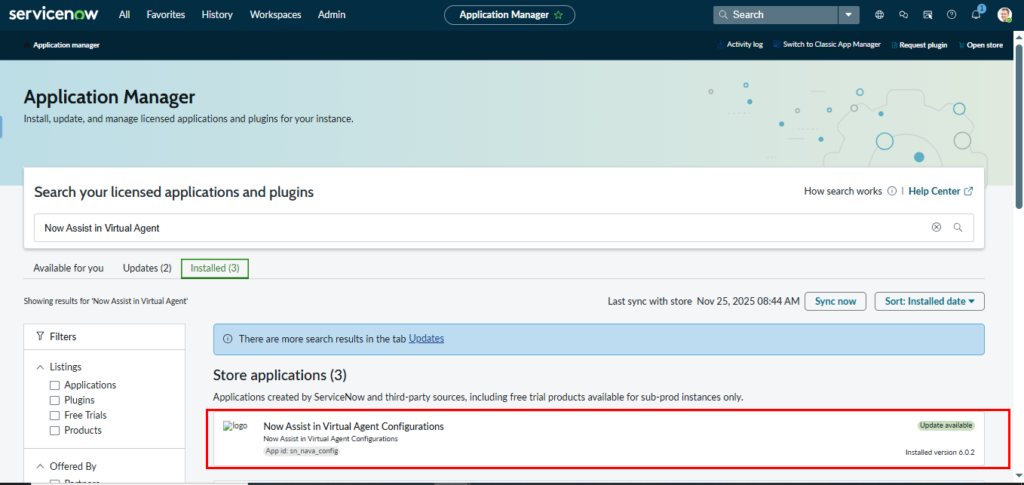
Now Assist in Virtual Agent | com.glide.now_assist.va | Install |
Conversational Catalog Request | (Bundled) | Auto-included |
Step 4: Turn on Now Assist in Virtual Agent (Guided Setup)
- Go to Now Assist Admin > Features > Platform > Conversational Experience
- Click Set up Now Assist in Virtual Agent
Search for “Assistant” in the application navigator
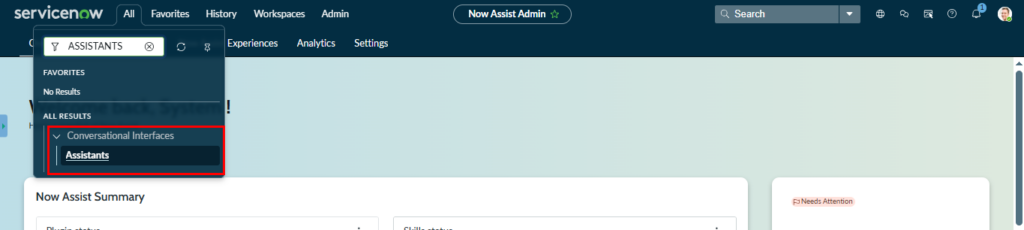
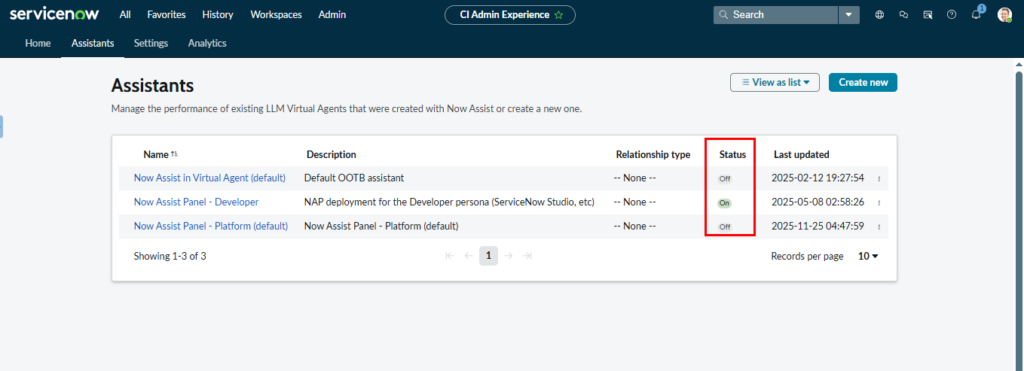
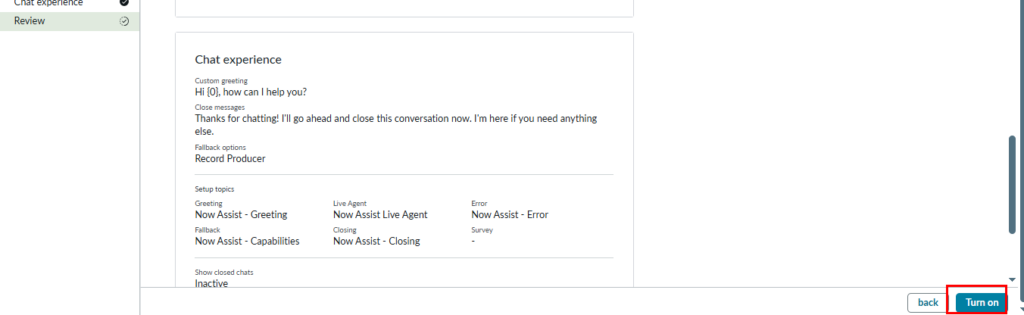
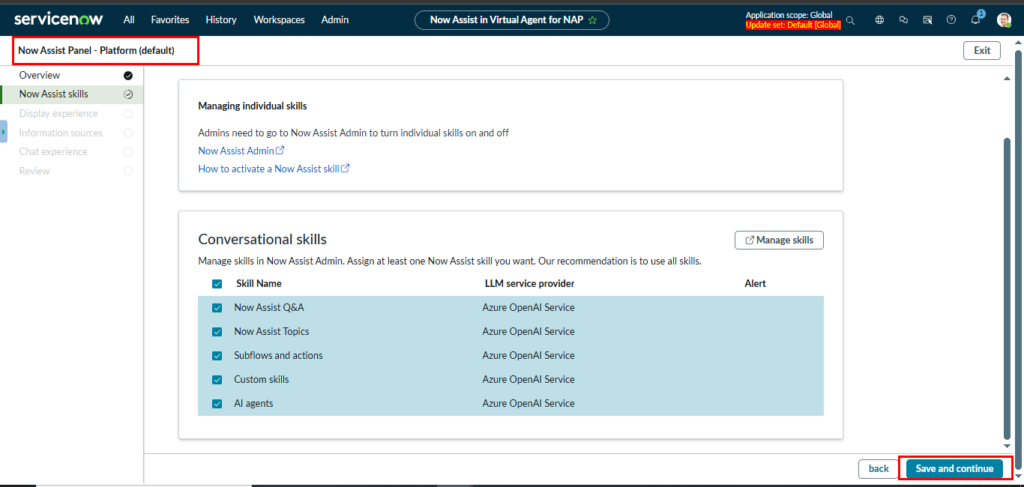
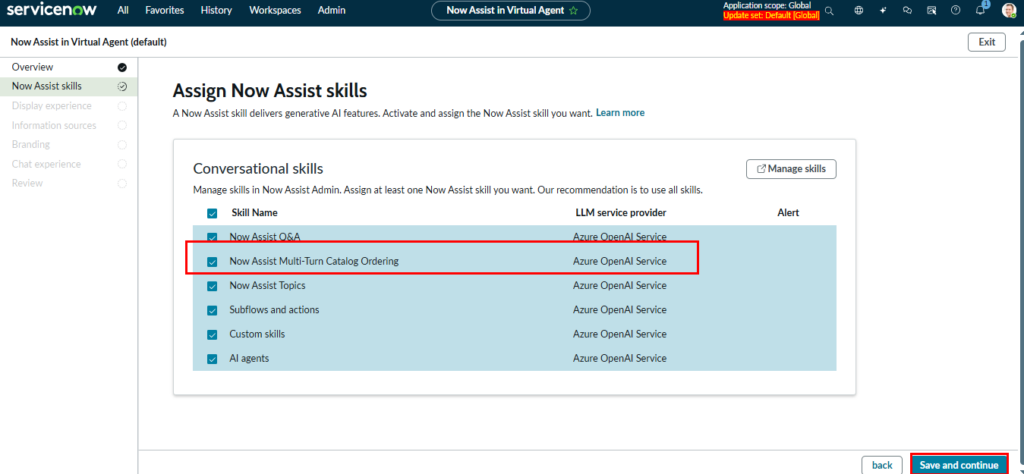
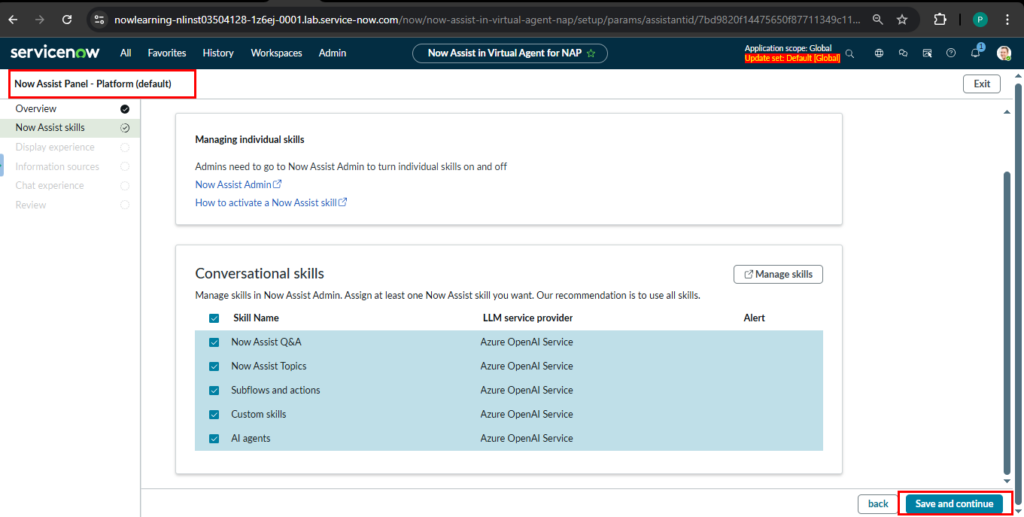
4.1 Enable Skills:
- Now Assist Multi-Turn Catalog Ordering → ON
- Now Assist Q&A Genius Results → ON (recommended)
Step 1: Install/Verify Required Plugins
- Navigate to System Definition > Plugins.
- Search and ensure these are Installed/Active:
- com.snc.now_assist_va (Now Assist Virtual Agent)
- com.glide.cs.now_assist (Now Assist Core)
- com.snc.virtual_agent (Virtual Agent base)
- If missing, install them (may require instance restart).
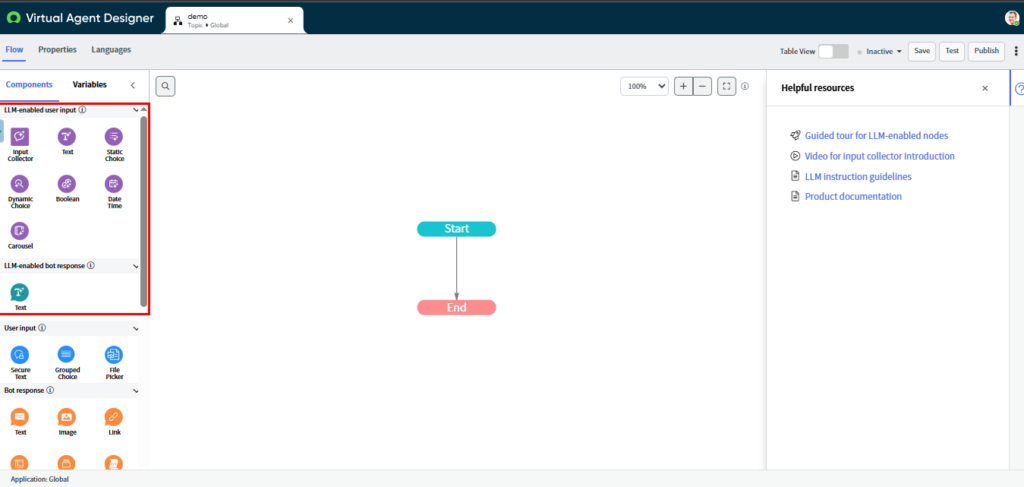
Use the low-code Setup Assistant for guided configuration – this “connects” Now Assist to Virtual Agent by creating an LLM-powered assistant.
- Go to Conversational Interfaces > Home.
- Under Now Assist in Virtual Agent, click Get Started or Setup Assistant.
- Alternatively: Now Assist Admin > Features > Platform > Conversational Experience.
- In the wizard:
- Assistant Name: Enter, e.g., “Service Portal Now Assist Bot”.
- Enable Skills: Check Now Assist Q&A (for KB/search) and Now Assist Topics (for workflows/catalog ordering).
- Information Sources: Add Knowledge Base, Service Catalog, and any custom tables.
- Copy Existing Config: If migrating from legacy VA, select “Yes” to import topics/search sources.
- Promoted Topics: Add quick-start options like “Reset Password” or “Order Laptop”.
- Click Create Assistant. This publishes the AI-enhanced VA.
Step 2: Enable on Service Portal
- Open the new assistant: Conversational Interfaces > Assistants > [Your Assistant Name].
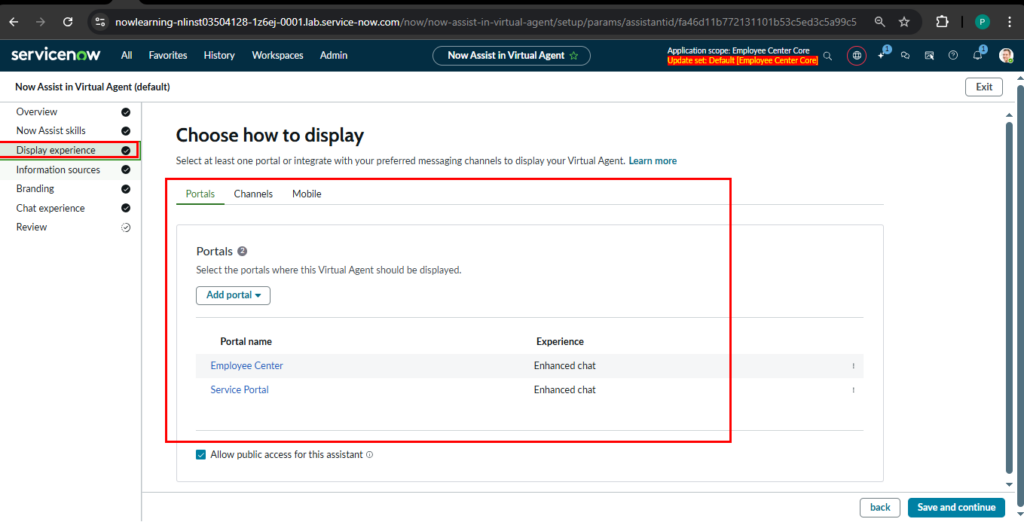
- Go to the Display Experience tab (or Channels for older releases.
- Under Portals:
- Select your Service Portal (e.g., default /sp or a custom one from Service Portal > Portals).
- Toggle Enable Now Assist (this disables legacy VA automatically).
- Optional: Enable Pinning for persistent chat (set system property com.glide.cs.now_assist_va.enable_pinning to true via System Properties).
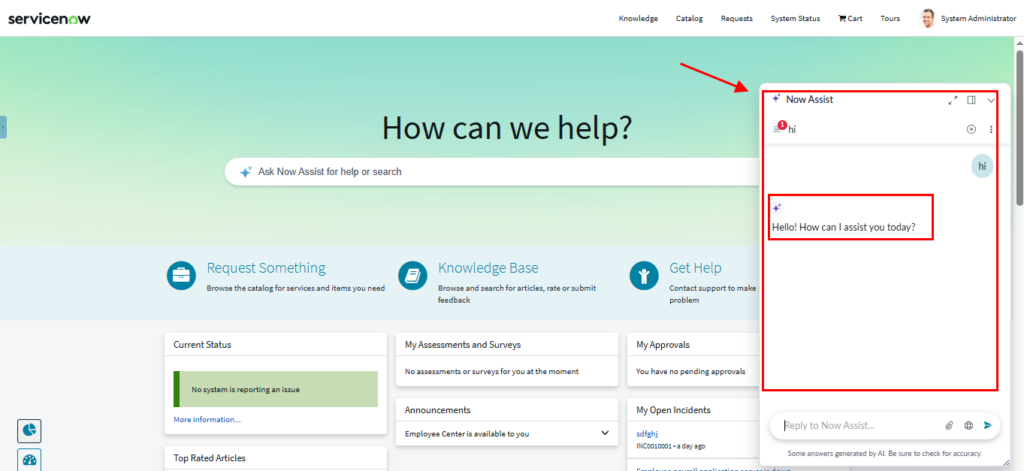
- Save changes. The chat bubble on /sp now uses Now Assist.
Step 3: Configure Agent Chat for the Portal
For fine-tuned portal activation:
- Go to Service Portal > Agent Chat > Configurations.
- Open or create a config for your portal (e.g., “Service Portal Chat”).
- Set:
- Portal: Your Service Portal ID.
- Chat Client: Select the Now Assistant.
- Pre-login Access: Enable if public chat is needed.
- In the portal’s Theme (Service Portal > Themes), ensure the Chat Launcher widget is in the footer/header.
Step 4: Migrate Legacy VA Topics (If Upgrading)
- Now Assist doesn’t use NLU topics directly.
- In Conversational Interfaces > Assistants > [Assistant] > Topics, use the Migrate Topics tool (Washington DC Patch 3+).
- Select NLU topics, map to LLM equivalents, and test.
- For catalog ordering: Ensure items have logical variable order; Now Assist handles them conversationally.