Policy Exception in GRC
1. What is Policy Exception?
- A policy exception is a formally documented and approved deviation from a policy when a user or business unit cannot meet specific policy requirements.
- In simple words it provides temporary relief for control owners that are unable to meet compliance requirements.
- It allows temporary non-compliance under controlled conditions by capturing the justification, assessing the associated risk, and ensuring the exception is reviewed, approved, and tracked within the GRC framework.
2. Purpose of Policy Exception?
- Allows users to request documented exceptions when they cannot comply with a policy.
- Ensures exceptions are reviewed and approved to maintain controlled compliance.
- Helps identify and manage risks associated with policy deviations.
- Promotes accountability by requiring justification and transparency.
3. Roles Required
| Role Name | Description |
sn_grc.business_user | A GRC role for users who actively work on risk, compliance, and policy tasks. They can create/update issues, take/approve assessments, respond to evidence requests, and request/approve policy exceptions. Intended for broader participation in GRC processes. |
sn_grc.business_user_lite | A limited-scope role for business stakeholders needing basic GRC interaction. They can report/read issues, respond to assigned tasks (attestations, evidence, questionnaires), and view/submit policy exceptions, but with fewer permissions than full business_user. |
4. Process Flow Diagram for Policy Exception

5. Policy Exception – FORM View
- Navigate to All > Policies and Compliance > Policies Exceptions > My policy Exceptions > New
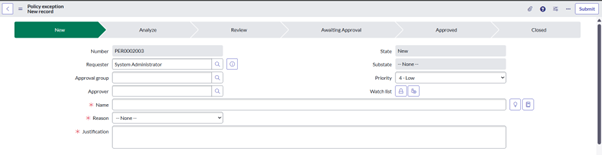
- Sections

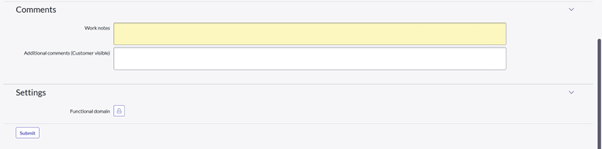
6. Policy Exception All Fields
Field | Description |
Number | Unique identification number. |
Requester | Person requesting the policy exception, usually the control owner. |
Approval group | Group that has the compliance manager role. You cannot edit the approval group if the policy exception reaches Review state. If you do not provide an approval group, then the field defaults to compliance manager. Compliance manager is the default role if the policy exception is raised from any upstream application that is integrated with GRC. |
Approver | User from the approval group. If the exception policy moves to the Analyze State, then you must select an approver. |
State | State of the policy exception within the approval workflow. |
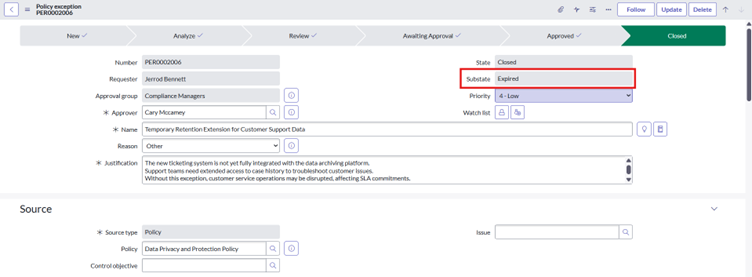
Substate | Approval substate of the policy exception within the approval workflow. |
Priority | Approval priority of this policy exception |
Watch list | Users that are notified when the request is updated. |
Name | Unique name of the policy exception. |
Reason | Reason for requesting the policy exception. The requester can change the reason until the policy exception is approved. |
Justification | Statement of explanation for the policy exception. Justification is also displayed in the additional comments. |
Source type | Type of policy exception that you want to create. The options are: |
Control objective | Control objective associated with this policy exception. |
Issue | Issue associated with this policy exception. |
Target record | Target record table on which the policy exception is applied. This table is also referenced in the Policy eception target table field of the Policy Exception Integration Registry Form. |
Risk rating | Select the risk rating as determined by the risk assessment performed on the policy exception. |
Risk description | Description of the risk as performed by the risk manager during risk assessment. |
Analysis of risk and impact | Details on the likelihood of this risk occurring and residual impacts of this risk on the policy exception. |
Risk mitigation plan | The risk mitigation plan for this policy exception. |
Valid from | Day on which the policy exception begins. |
Valid to | Day on which the policy exception ends. |
Duration | Number of days between the Valid From and Valid to dates. |
Approved extensions | Number of times extensions have been requested so far and have been approved. |
Remaining extensions | Number of times extensions can be requested in future. |
Created | Date on which the policy exception was requested. |
Date approved | Date on which the request was approved. |
Extension date | Requested extension date, which is after the Valid to date. |
Extension reason | Reason for extension. |
Original valid to | Date until which the policy exception was originally requested and approved. The original Valid to date is populated only when the extension is approved. |
Work Notes | Work notes can be used by exception reviewers and approvers to share Information about the exception. |
Additional comments | These comments are used by the reviewer to communicate additional information to the exception requester. |
7. Policy Exception States and its Lifecycle
7.1. How to request Policy Exception
- Login to esc Portal > Open ‘Request Extension’ Record Producer > Submit
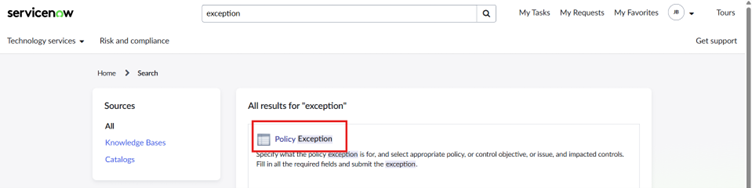
- Fill all the required fields
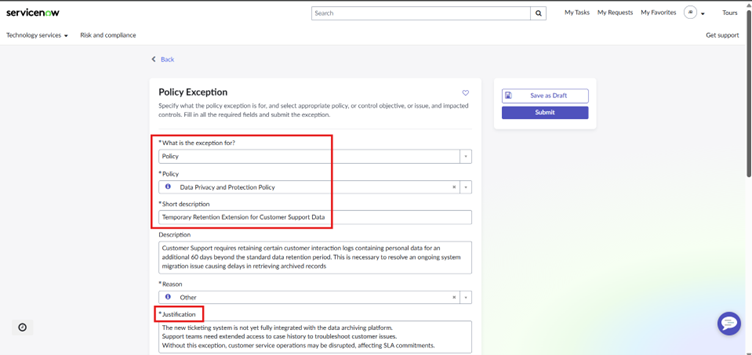
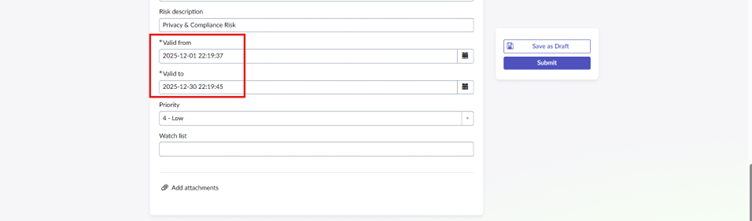
- Submit the Request
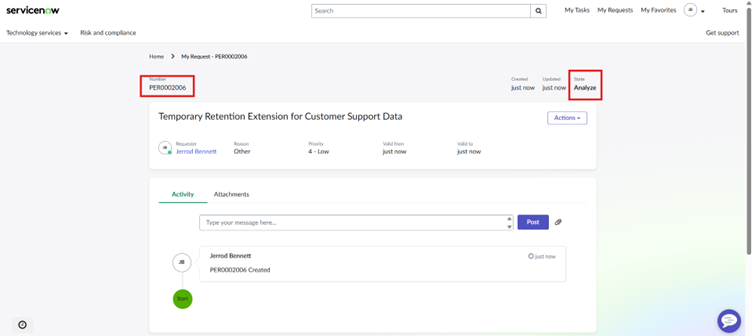
7.2. States of Policy Exception
- New
- When creating new policy exception from Native UI then state is NEW
- An exception request is created because a user, team, or system cannot meet a specific policy requirement.
- Person involved in this state is the Requestor (business user, system owner, or application owner).
- Goal is to document the need for the exception, including justification, scope, risk, and proposed compensating controls.
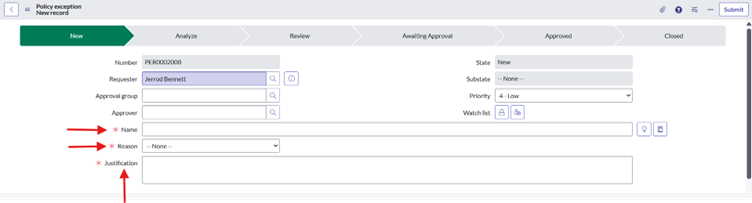
- Provide all the mandatory information and save the record then , once request gets created then state changs from New to Analyze
2. Analyze
- When Policy exception record is created then it is in Analyze state.
- The exception is being evaluated for risk, impact, and validity to determine whether it should move forward.
- Persons involved in this state are Risk team, Compliance/GRC analysts, and sometimes the Policy Owner.
- Goal is to review the justification, assess risks, determine required compensating controls, and confirm whether the request is reasonable.
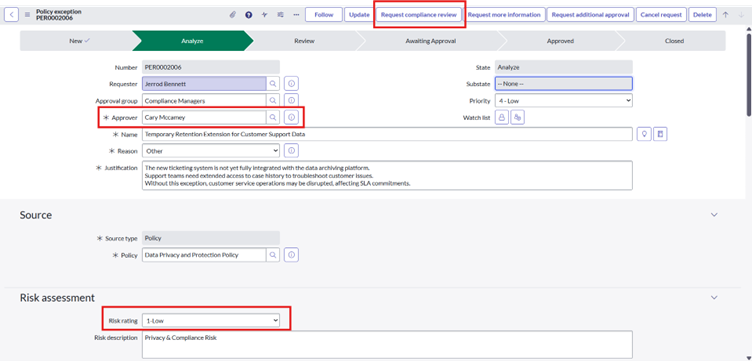
- Provide Approver and Risk rating then click on ‘Request Compliance Review’ then state will change from Analyze to Review
3. Review
- Detailed review of the refined exception request after analysis is complete.
- Persons involved in this state are, reviewers such as department leads, technical SMEs, or policy owners.
- Goal is to validate accuracy, check completeness, ensure risks are understood, and confirm alignment with business/legal requirements.
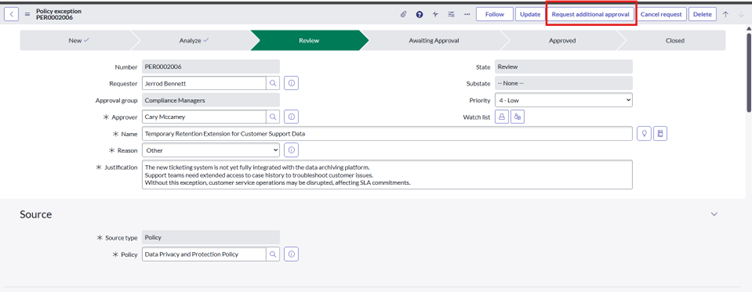
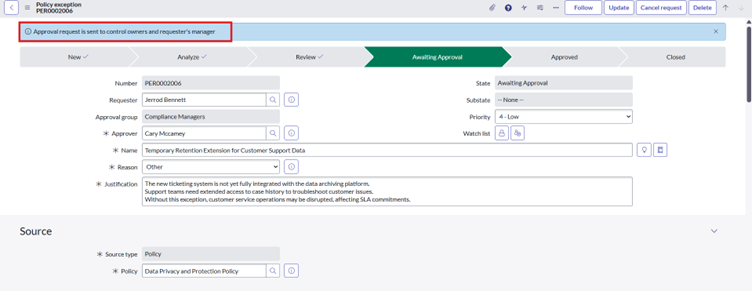
- Click on UI action ‘Request Additional Approval’ but make sure your requester has manager assigned then state will change from Review to Awaiting Approval.
4. Awaiting Approval
- The exception has passed review and is now pending formal approval.
- Designated Approvers such as senior leadership, risk committees, compliance managers, or policy owners are responsible in this state
- Goal is to obtain official authorization and document the approval in an auditable manner.
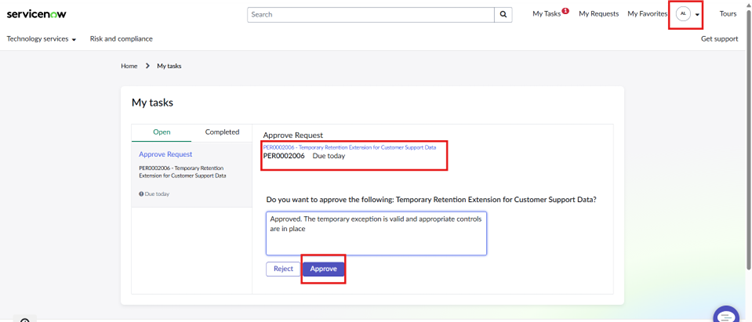
- Impersonate to the manager of Approver, and approve the request then state will change from Awaiting Approval to approved.
5. Approved
- The exception is formally granted for a defined duration, with required compensating controls in place.
- Goal is to allow temporary deviation from the policy while maintaining acceptable risk levels and tracking expiration.
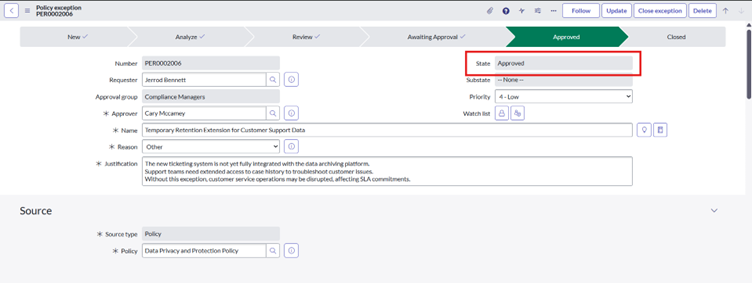
- When we click on ‘Close Exception’ UI action
6. Closed
- The exception is no longer active either it expired, was resolved, or the underlying issue was fixed.
- Goal is to end the exception and ensure compliance is restored. Documentation is preserved for audit history.
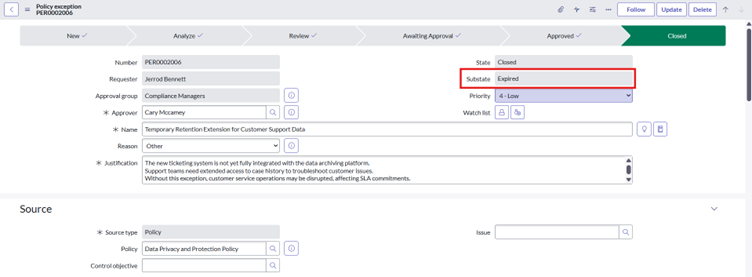
7.3. Policy Exception Extension
- A Request Extension is a formal request to extend the validity or expiration date of an existing approved policy exception.
- It is used when the original issue or limitation preventing compliance has not yet been resolved by the time the exception is nearing its expiration.
7.3.1. Purpose
- To ensure continued, documented permission to remain temporarily out of compliance with a policy.
- To provide leadership and compliance teams with updated justification, risk assessment, and timelines.
- To maintain auditability and avoid unauthorized or expired exceptions.
- To confirm the organization still accepts the associated risk for the extended period.
7.3.2. Procedure of Policy Exception Extension
- Log in to esc Portal and open your previous exception request and click on UI Action ‘Request Extension’
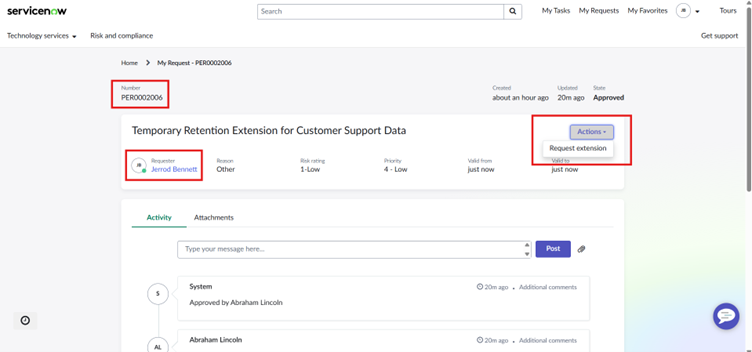
- Click on Request Extension and Click on Request , then sub-state of the policy exception record changes to Under Review
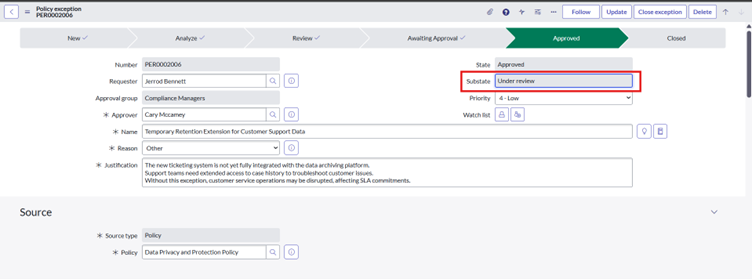
- When exception request closed then substate will change from Under Review to Expired.